In this lesson
- go through the six parts of the screen almost every exchange has
- learn to read a trading pair and the 24-hour figures
- know where to find your open orders
The first time you open a trading screen, it looks like an aircraft cockpit: numbers flash, green alternates with red and there are more buttons than in a kitchen. The good news: almost every exchange has the same layout. Learn it once and you can find your way anywhere.
What it looks like on Binance#
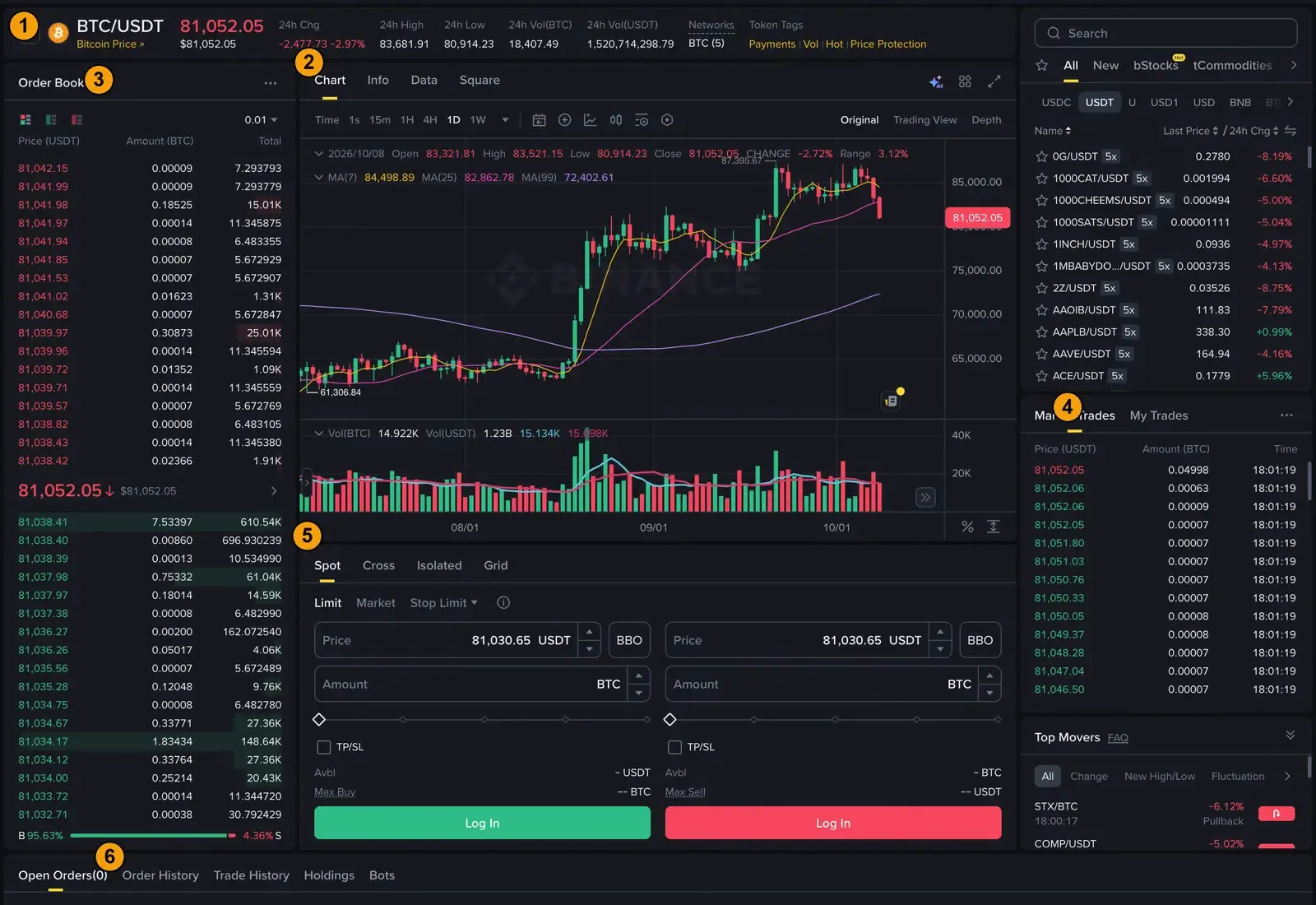
1. The trading pair and 24-hour figures#
At the top is the trading pair, for example BTC/EUR. The first currency is what you buy, the second is what you pay with. A price of 60,000 on BTC/EUR means one bitcoin costs 60,000 euros.
Next to the pair you will see:
- the last price – what the last trade was at,
- the 24h change – how many percent the price moved over the last 24 hours (not since midnight),
- 24h high and low – the highest and lowest price in 24 hours,
- 24h volume – how much was traded.
In the EU you will mostly see pairs with the euro and with the stablecoin USDC. Many exchanges withdrew the stablecoin USDT for EU customers because of the MiCA rules.
In the video the cursor goes over the 24-hour figures and then finds another pair: it types SOL into the search at the top right and picks SOL/EUR.
2. The chart#
The biggest part of the screen. Timeframes, indicators and drawing get the whole third module.
3. The order book#
The so-called order book shows who wants to buy and sell at what price. Sell offers in red at the top, buy offers in green at the bottom, the last price in the middle. More in lesson 12.
4. Recent trades#
A list of trades that have just happened: price, amount and time. Green ones are market buys, red ones market sells.
5. The order panel#
This is where you buy and sell: Buy / Sell tabs, the order type (Limit, Market, Stop), fields for price and amount, a slider for a percentage of your balance and a big button. Lesson 7 shows how to fill it in.
6. Your orders#
Below the chart: open orders (those waiting), order history and trade history. If a limit order "disappeared", it is most likely waiting here for its price.
Watch out for the Futures and Margin tabs
On many exchanges a switch to futures or margin – leveraged trading – sits right next to spot trading. They look almost the same. Check that you are on the Spot tab. Lesson 13 explains why.
Common myths#
- "The 24h change is today's change." It is the last 24 hours, not since midnight.
- "My order got lost." A limit order waits in open orders until the price arrives.
- "BTC/EUR and EUR/BTC are the same." No – the first currency is what you buy.
Summary
- Trading pair BTC/EUR: you buy bitcoin and pay in euros; the last price and 24-hour figures are at the top.
- The chart is in the middle, with the order book and recent trades beside it.
- The order panel: Buy/Sell, order type, price, amount.
- Open orders and history are at the bottom – and always check you are on the Spot tab.